

Library Mode
Challenges with Traditional Git GUIs
Section titled “Challenges with Traditional Git GUIs”Typical Git GUI tools are designed around text file diff management. They display only changed files in a list, and the workflow involves reviewing diffs, staging, and committing.
However, this design becomes problematic for Unreal Engine development:
- Assets are binary, so text diffs cannot be displayed
- You often want to browse the entire project, not just changed files
- You want to find files while viewing thumbnails
- You want the familiar feel of Content Browser
Library Mode is a view mode designed to address these needs.
Difference from VCS Mode
Section titled “Difference from VCS Mode”Textil has two display modes:
| Mode | Focus | Display Content | UI Concept |
|---|---|---|---|
| VCS Mode | Change-centric | Staged and unstaged changed files | TortoiseGit |
| Library Mode | Asset-centric | All files in the project | Content Browser / Explorer |
The key point is that these modes don’t provide different functionality. All VCS operations (staging, committing, viewing history, etc.) are available from both modes.
The difference is only in perspective—“how you view the repository.” VCS Mode focuses on “what changed,” while Library Mode focuses on “what exists.”
Library View
Section titled “Library View”When you switch to Library Mode, assets are displayed in a Content Browser or Explorer-like view.
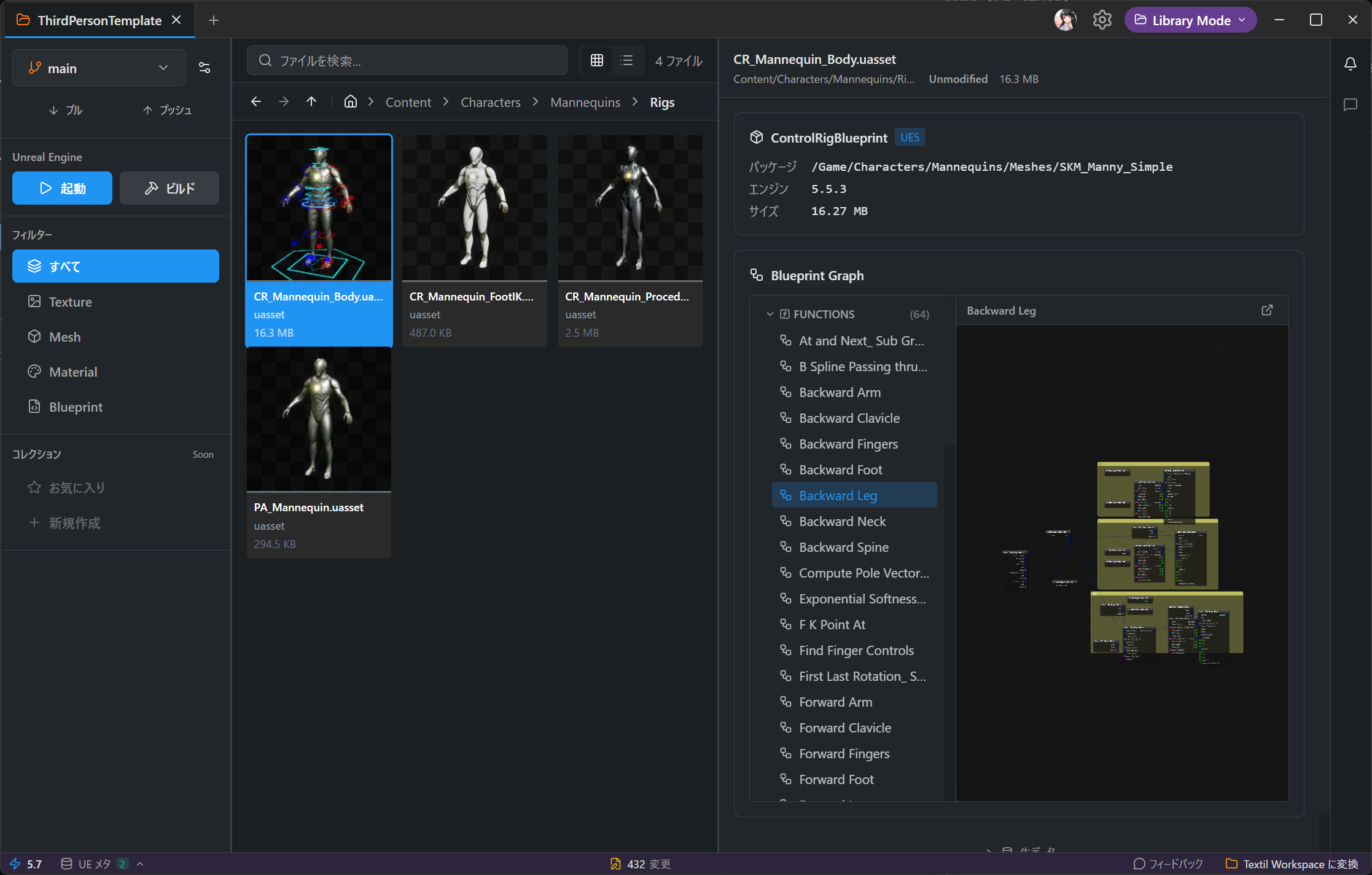
Display Modes
Section titled “Display Modes”| Mode | Description | UI Concept |
|---|---|---|
| Grid | Tile display with thumbnails (default) | Content Browser |
| List | List display with file names and metadata | Explorer |
Asset Filter
Section titled “Asset Filter”Filter assets in the repository by type.
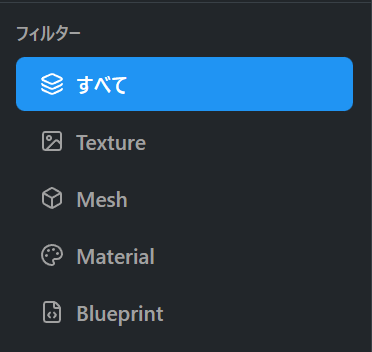
| Filter | Target Files |
|---|---|
| Texture | Texture assets (textures within .uasset) |
| Mesh | Static meshes, skeletal meshes |
| Material | Materials, material instances |
| Blueprint | Blueprint assets |
When you apply a filter, all files below the current folder are displayed flat.
Navigation
Section titled “Navigation”Folder Navigation
Section titled “Folder Navigation”
- Double-click: Open folder
- Back / Forward: Navigate history
- Up: Go to parent folder
- Breadcrumb: Jump to any level in the path
Search
Section titled “Search”Enter a keyword in the search box to search below the current folder.
- File name search: Partial match search
- Recursive search: Includes subfolders
- Type filtering: Can be combined with filters