

Workspaces
The Cost of Branch Switching
Section titled “The Cost of Branch Switching”When working on Unreal Engine projects, you frequently encounter situations where you want to “just check another branch”:
- While developing a main feature, an urgent bug fix request comes in
- You want to review a colleague’s PR while continuing your own work
- You need to check the release branch to investigate a production issue
However, in large projects, the cost of branch switching becomes very high:
- Editor restart: When .uasset files change, you need to close the Editor
- Shader compilation and cache regeneration: Depending on branch differences, cache regeneration can take a long time
- Loss of work state: Open assets, window layouts, and debug settings are reset
Waiting 30 minutes “just to check something” isn’t practical. As a result, you start avoiding branch switches, and development flexibility is lost.
Solving with Workspaces
Section titled “Solving with Workspaces”The workspace feature uses Git worktree to deploy multiple branches simultaneously.
- Parallel work: Deploy multiple branches in independent folders
- State preservation: Maintain DCC and shader/C++ compilation results for each workspace
- Instant switching: Switch between workspaces without file checkout
Directory Structure
Section titled “Directory Structure”Textil Workspace uses Git worktree with the following structure:
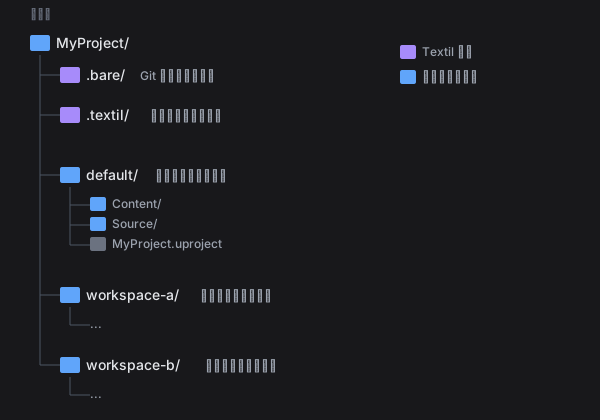
Each workspace is an independent directory, but they share Git objects in .bare/.
Comparison with Clones
Section titled “Comparison with Clones”You could also clone the repository multiple times to work on different branches. However, for large projects, disk usage becomes a problem.
| Method | Git Objects | Working Files |
|---|---|---|
| Multiple clones | Per branch | Per branch |
| Workspaces | Shared | Per branch |
Working files (checked out files) require the same amount either way, but Git objects and LFS file caches are shared across workspaces.
Workspace List
Section titled “Workspace List”The workspace panel shows all workspaces associated with the current repository.
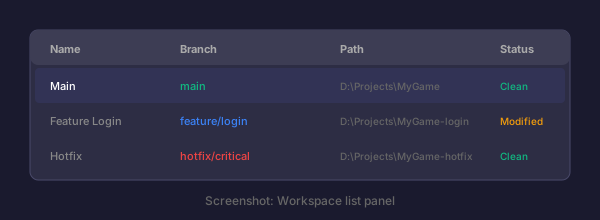
| Item | Description |
|---|---|
| Name | Workspace identifier |
| Branch | Checked out branch |
| Path | Workspace directory path |
| Status | Presence of changes (clean / has changes) |
The currently active workspace is highlighted.
Create a Workspace
Section titled “Create a Workspace”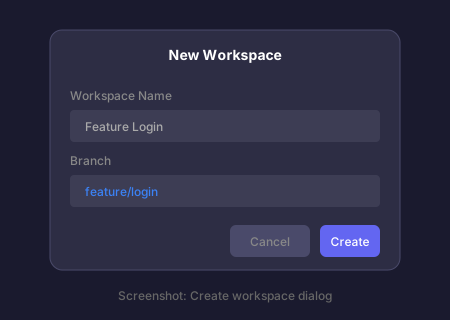
- Click the + button in the workspace panel
- Enter a workspace name
- Select the branch to check out
- Select the destination directory (or auto)
- Click Create
Switch Workspaces
Section titled “Switch Workspaces”- Click the target workspace in the workspace list
- The selected workspace becomes active
- File list and diff views switch
Switching completes instantly—no file checkout occurs.
Work in a Workspace
Section titled “Work in a Workspace”Each workspace functions as an independent working directory:
- Edit files: Edit just like a normal repository
- Commit: Commit independently in each workspace
- Push: Push changes to remote
- Pull: Fetch changes from remote
Delete a Workspace
Section titled “Delete a Workspace”- Right-click the workspace you want to delete
- Select Delete Workspace
- Click Delete in the confirmation dialog
Branches and Workspaces
Section titled “Branches and Workspaces”Creating New Branches
Section titled “Creating New Branches”When creating a workspace, you can select an existing branch or create a new one:
- Existing branch: Select from dropdown
- New branch: Enter a branch name to create
Branch Constraints
Section titled “Branch Constraints”You cannot check out the same branch in multiple workspaces within one repository.
✅ workspace-a: main✅ workspace-b: feature/login✅ workspace-c: feature/settings❌ workspace-d: main (main is already in use by workspace-a)Use different workspaces for different branches.
Use Cases
Section titled “Use Cases”Parallel Feature Development and Bug Fixes
Section titled “Parallel Feature Development and Bug Fixes”When developing a main feature while handling an urgent bug fix:
- Developing features on
feature/new-uibranch - Urgent bug report comes in
- Create a new workspace with
hotfix/critical-bug - Fix the bug, commit, and push
- Return to the original workspace and continue feature development
Switch work instantly without waiting for Editor restart or shader recompilation.
Separating Reviews and Development
Section titled “Separating Reviews and Development”When reviewing code while continuing your own development:
- Your development on
feature/my-work - Create a workspace for
feature/teammate-prto review - After review, return to your development workspace
Simultaneous Testing of Multiple Versions
Section titled “Simultaneous Testing of Multiple Versions”When testing different versions simultaneously:
- Workspace for
release/v1.0 - Workspace for
release/v2.0 - Check behavior in each Editor
Unreal Editor Integration
Section titled “Unreal Editor Integration”When opening a workspace in Unreal Editor, open each workspace’s .uproject file separately:
D:\Projects\MyGame\ <- main branchD:\Projects\MyGame-feature\ <- feature branchYou can launch separate Editor instances for each workspace. This means:
- Shader cache is maintained per workspace
- Run multiple versions simultaneously