

.uasset Preview & Diff
Unreal Engine asset files (.uasset) are stored in binary format. Standard text editors and version control tools cannot display their contents. Textil analyzes the internal structure of assets and provides preview and diff capabilities.
Textil extracts the following information from asset files:
- Export Structure: Objects within the asset (root, components, CDO, etc.)
- Property Values: Values held by each object’s properties
- Import References: Dependencies on other assets
.uasset Preview
Section titled “.uasset Preview”The preview feature lets you examine the contents of a single .uasset file. This is useful when you want to quickly check an asset’s structure or property values without launching Unreal Editor.
Property Tree View
Section titled “Property Tree View”Displays the asset’s property structure hierarchically.
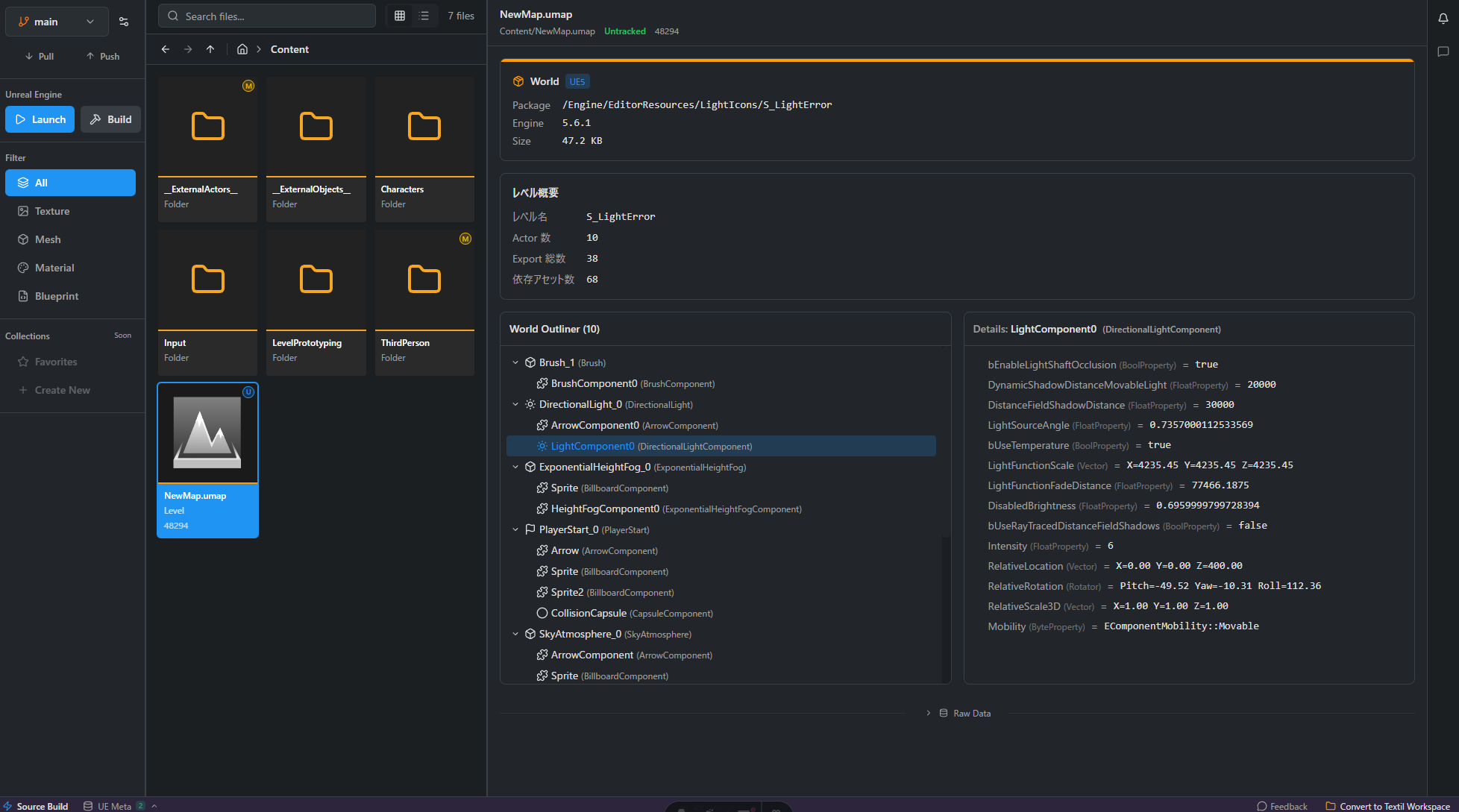
- Shows properties in a tree structure for each Export object
- Expand arrays and nested structs for inspection
- Filter properties by name or value using the search feature
Graph View
Section titled “Graph View”For node-based assets like Blueprints and Materials, you can view the node structure in Graph View.
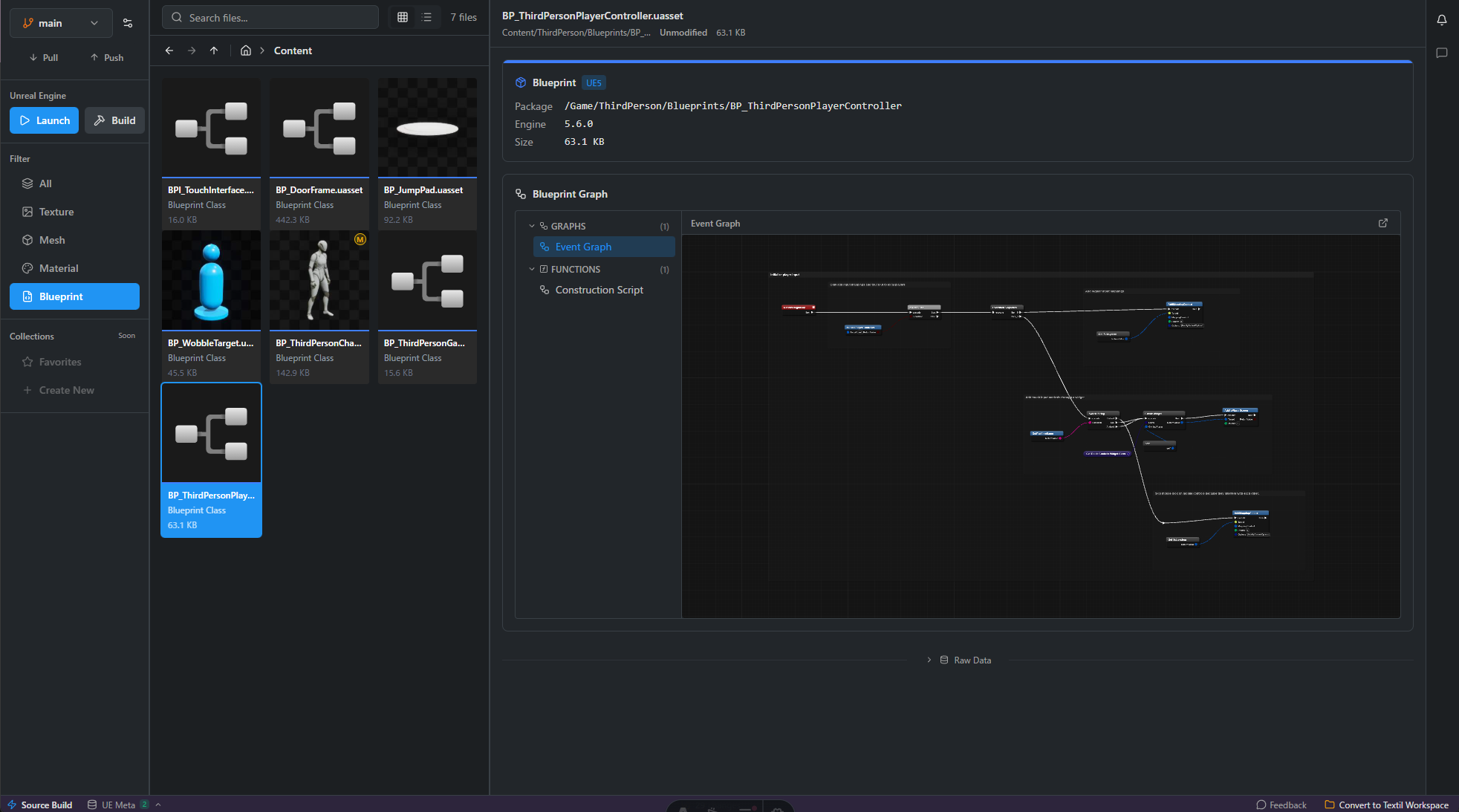
- Visualizes nodes and connections
- Switch between multiple graphs (EventGraph, ConstructionScript, etc.) using tabs for Blueprints
- Zoom and pan to examine details
Supported Asset Types
Section titled “Supported Asset Types”| Asset Type | Display Content |
|---|---|
| Blueprint | Node graphs for EventGraph, ConstructionScript, etc. |
| Material | Shader graph node structure |
| Material Instance | Parameter override values |
| Texture | Texture settings, MIP levels, and other metadata |
| DataTable | Data in row/column format |
| Level | Actor list and properties |
For asset types not listed above, you can still view contents using the Property Tree View.
.uasset Diff
Section titled “.uasset Diff”The diff feature lets you compare changes between two versions. Where traditional version control only shows “binary file changed” for .uasset files, you can now see exactly which properties changed and how.
Property Tree View
Section titled “Property Tree View”Displays the property structure hierarchically with changes highlighted.
- Added properties: Highlighted in green
- Deleted properties: Highlighted in red
- Modified properties: Highlighted in yellow, showing before and after values side by side
Changed nodes are automatically expanded, while unchanged nodes remain collapsed. Enable the “Show changes only” filter to hide unchanged properties.
Graph View
Section titled “Graph View”For node-based assets like Blueprints and Materials, you can view changes in Graph View.
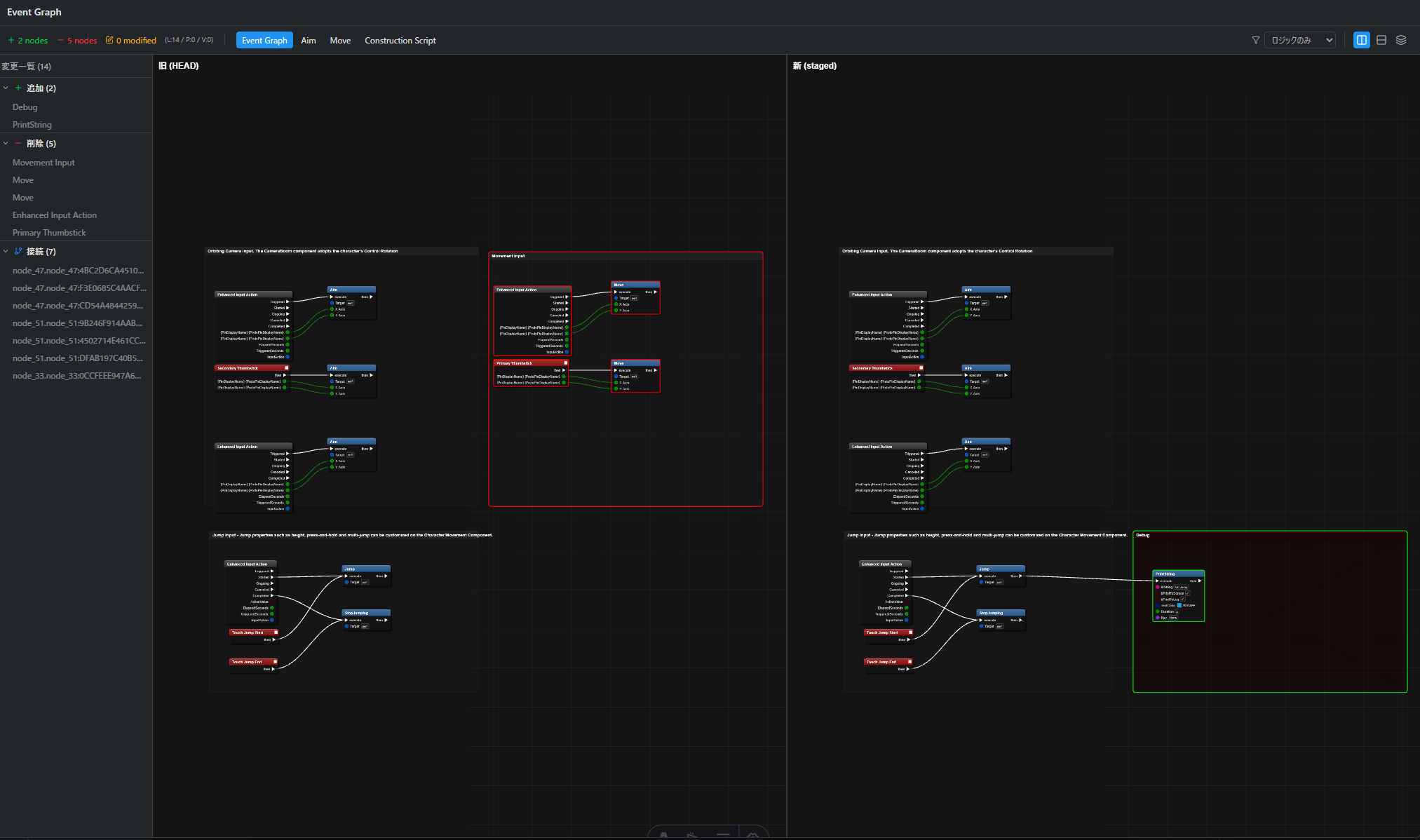
- Side-by-side or top-bottom split view to compare before and after
- Changed nodes and edges are highlighted
Diff Level Filter
Section titled “Diff Level Filter”In Graph View, you can filter by change significance:
| Level | Changes Shown |
|---|---|
| Logic | Only logic-affecting changes (node additions/deletions, connection changes, pin configuration changes) |
| Layout | Logic + position and size changes |
| Visual | All changes (including visual changes like colors) |
The default is Logic level, hiding cosmetic changes that don’t affect logic.
Change Navigation
Section titled “Change Navigation”The diff view provides navigation features for efficiently reviewing changes:
- Previous change / Next change buttons to move through changes sequentially
- Current change position is highlighted
- Auto-scrolls to change location
Diff Context
Section titled “Diff Context”Diff view is available in the following contexts:
| Context | Comparison |
|---|---|
| Staged | HEAD vs staged changes |
| Unstaged | Staged (or HEAD) vs working tree |
| Worktree | HEAD vs entire working tree |
| Commit | Comparison with a specified commit |
The appropriate context is automatically selected based on the status shown in the file list.